Sessions
Start a task, follow it and get the result.
A session is one task: a conversation with an agent and the sandbox it works in. You start it from the composer, follow it step by step, and step in only when it needs you.
Start a session
- Click
New session. - Under What should the agent do?, describe the task. See Write a good task.
- Under the box, pick what you need:
- Agent or Plan. Plan only reads and proposes; then you run the plan.
- The model, and how hard it thinks.
- Repositories from your connected code hosts. Each becomes a chip with a ×;
Search all repositories…finds any you haven't used lately. Pick none to work in an empty sandbox. - An agent, and where it runs: a Pistis sandbox or a pool of your own machines.
- Press Enter, or click the arrow. Shift-Enter starts a new line.
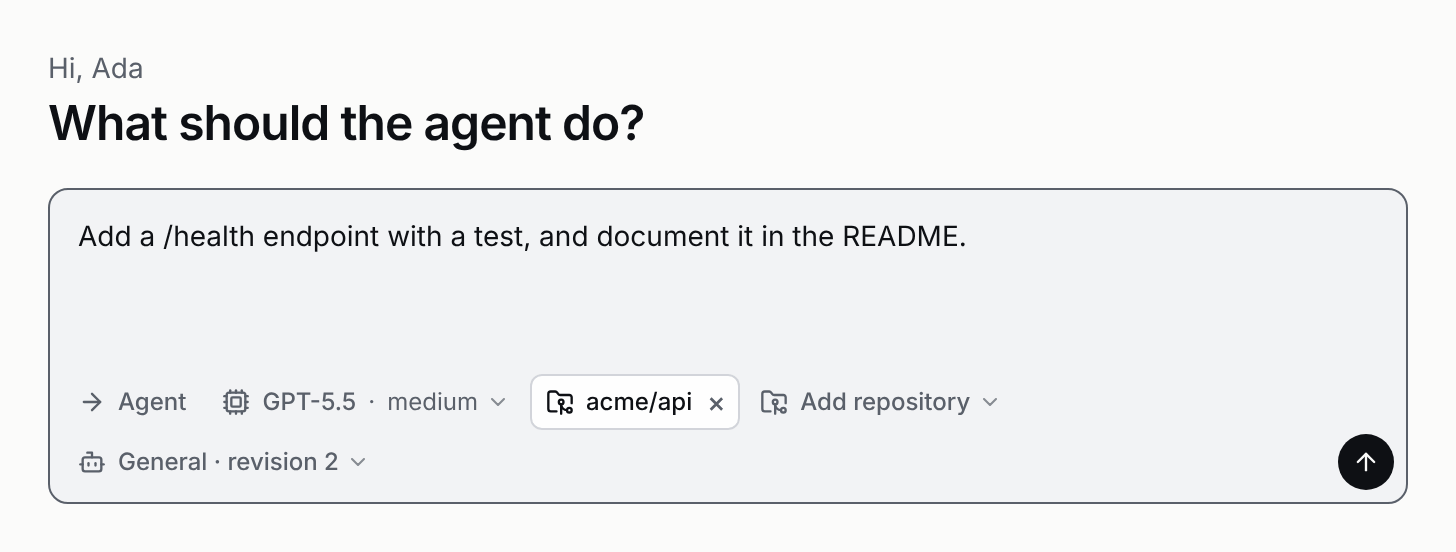
The first reply can take up to 30 seconds while a new sandbox starts. An admin can keep spare sandboxes ready so sessions start at once (Operate).
Follow the work
Each command the agent runs is a step. Its output streams in while it runs. File edits show as diffs. The header shows the session's title and status (Working, Needs you, Paused by …, Idle or Ended).
The sidebar groups your sessions:
- Needs you, with a count: an approval or a question waits.
- Running, then Recent (newest first), then sessions shared with you.
Each row shows what the agent is doing now, such as bash · 12s, and when it last moved. Subagents sit under the session that started them, named by their task. The open session's row also shows its agent, its repository and its sandbox's state; Copy session id is in the title's menu. Sessions, Flows, Agents and, for admins, Control center sit above the list. Click your name at the bottom for your Account (notifications), API tokens, how to use Pistis from your own MCP client (MCP clients), your Connections and Sign out.
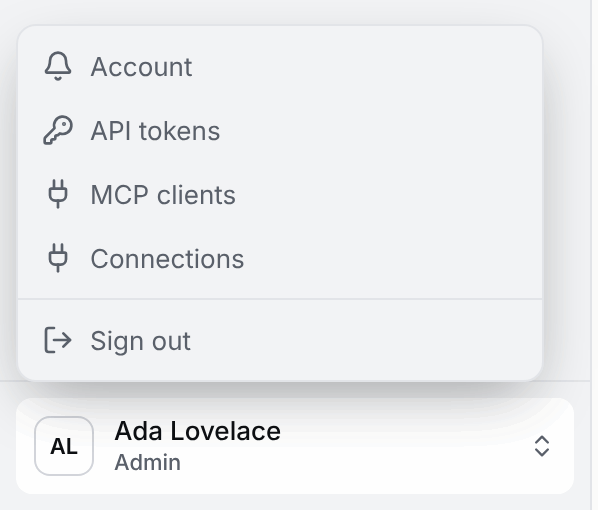
Find a session
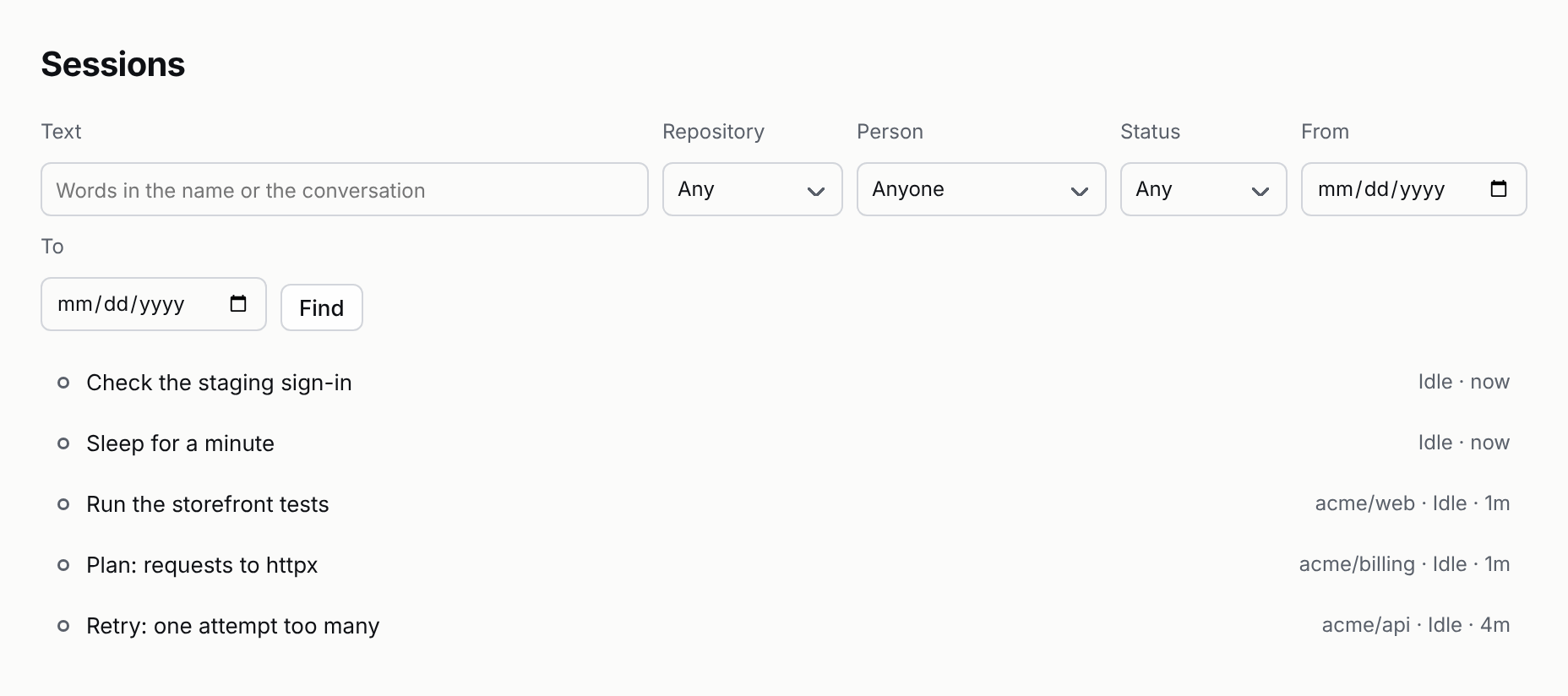
Click Sessions above the sidebar's list to search every session you may see: your own, the ones shared with you, and everyone's if your role may list all sessions. Filter by words in the name or anywhere in the conversation, by repository, by person, by status (Needs you, Running, Idle, Ended) and by the dates it started. The filters are in the page's address, so you can bookmark a search or send it to someone; they see only what they may see.
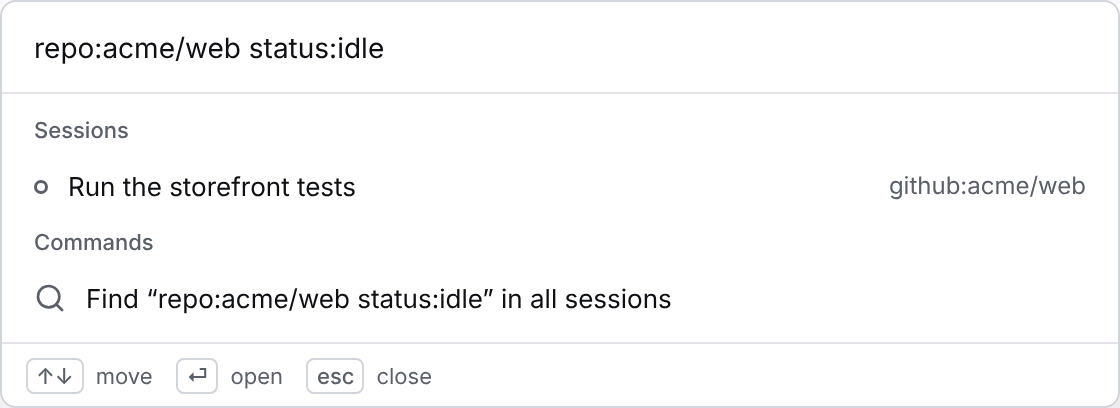
The command palette (Ctrl+K) searches the same way as you type. Add filters as words: repo:acme/web, status:working, from:2026-10-01, to:2026-10-31. Find … in all sessions opens the full list.
Ctrl+B (⌘+B on a Mac) collapses the sidebar until you open it again. On a phone, the menu button opens it.
You can close the page; the session keeps working on the server. When it needs you, the sidebar marks it and the browser tab title starts with Needs you · .
Name a session
A session is first named by your message. Once the agent knows what the task is, it gives the session a short name of its own. To rename it, click the title and choose Rename, type the new name and press Enter (Escape keeps the old one). A name a person gave stays: the agent doesn't replace it. The owner, collaborators and approvers can rename a session. Over HTTP it is POST /sessions/:id/title; in pistis attach, /rename; over MCP, rename_session.

Show details
By default the timeline shows your messages, the agent's answers, its handoffs to subagents, diffs, pull requests, anything that needs you, and short results (up to 4 lines). Each tool call is one line. A longer log from a step that worked is folded under that line: click to open it, hover to see its line count.
Choose Details from the title's menu to see everything: each model call (time, tokens, cost), every step's output and the agent's instructions. Your browser remembers the setting; the page reloads to show it.
Share a session
Click the share button at the top right of a session (or Share in the title's menu) and pick a person and a role:
- Viewer reads the session as it runs.
- Collaborator also sends messages, steers and stops.
- Approver also approves or denies the steps that wait, and may send Auto messages.
Or make a read-only link: anyone with it can watch the session, without signing in, for 7 days. Revoke a person or a link from the same dialog; they lose access at once. Sessions shared with you are listed under Shared with you in the sidebar, and everything a person does there is recorded with their name. Over HTTP: POST /sessions/:id/shares and POST /sessions/:id/links (HTTP API).
Send more messages
Type in the reply box and press Enter. While the agent works, Enter steers: your message joins the running turn, and the agent reads it at its next step. Option-Enter (Alt-Enter) queues it for after the turn instead, and Escape stops the turn. Queued messages run one at a time, in the order you sent them. Until then they wait above the box, where you can edit or drop them.
To send files, click the paperclip (Attach files), drag files onto the reply box, or paste an image. Each file uploads at once and waits as a chip until you send; click its × to remove it. A file may be up to 10 MB, and one message's files up to 25 MB together. The agent finds them in the sandbox under /workspace/.pistis/attachments/, and the model also sees images.
Plan first
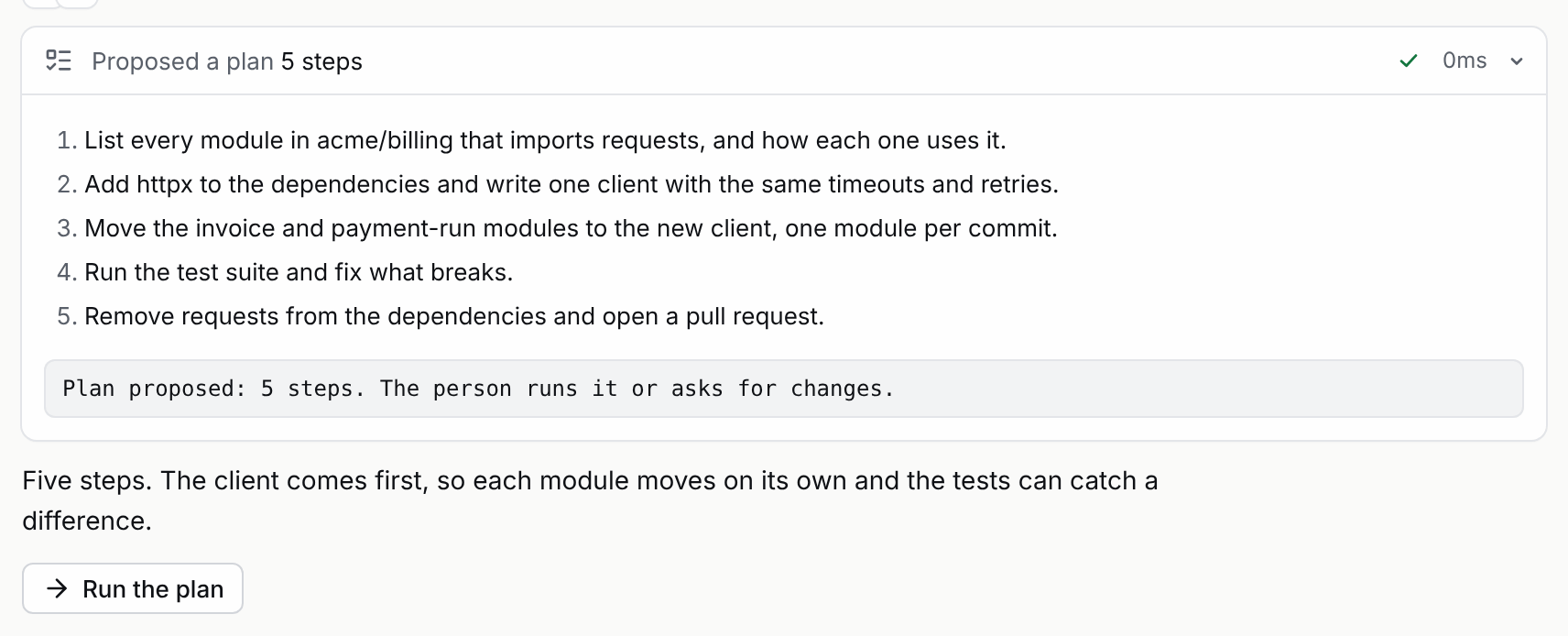
Pick Plan under the box. In Plan mode the agent only reads and searches, then proposes a plan as numbered steps, each one thing to do. Tools that would change something, such as editing files or running commands, are refused. Slack shows the same steps in the thread, and the HTTP API keeps them as a list on the propose_plan step.
When the plan is ready, click Run the plan. It switches to Agent and the agent carries the plan out.
When the agent asks you
The agent can stop and ask you a question with its ask tool. The session shows a card with the question and, often, a few options. Click an option, or press its number key. A question without options takes a typed answer. Until you answer, the session is listed under Needs you, and the step that asked gets your answer.
Change the model
Click the model under the reply box to pick another one, and how hard it thinks (off, low, medium, high…) if it can. The next step uses it, and the session keeps it until someone changes it again. The conversation shows who switched and to what. Your admin decides which models are offered (Run it for a team).
Context and cost
The ring by the send button fills as the model's context window does: amber past 70%, red past 90%. Hover it to see how many tokens the conversation takes, and what the session has used and cost so far.
Retry and branch
- Retry. A step that failed has a
Retrybutton. It runs the same command again as a new step, and the agent sees the result on its next turn. It works while the agent isn't working. - Branch. Hover a message and click
Branch. You get a new session with the conversation up to the end of that message's turn, and the files as they were then. The original session doesn't change.
Subagents
The agent can hand tasks to helper agents with its subagent tool, several at once. Each runs as its own session, with its own sandbox. The step shows Handed off; open it to see each task's steps, spend and status, and click a task to open its session. The step ends when every task is done, and their answers are its result.
Code mode
With its codemode tool the agent can write a short script that calls several tools in one step. The step shows Ran a script, and each call the script made is listed under it. Each call follows the same rules as a direct one, including approvals and Plan mode. Code mode is on by default; an admin turns it off with "codemode": false in pistis.json.
If the sandbox crashes
The session carries on. A command that was running shows Outcome unknown · not run again: Pistis can't know how far it got, so it tells the agent instead of running it twice. The agent decides what to do, which may be to ask you.
On the next command, Pistis brings the sandbox back with your files as of the last step.
Stopped after repeated crashes
If your Pistis server crashes five times in a row while the same step is under way, it stops running that step instead of crashing again, and the session shows a card: Stopped after repeated crashes. Nothing is lost. Fix what made the server crash, then click Retry on the card. The session's owner and admins can.
The step picks up where it was. A command that was running when the server went down is reported as outcome unknown (Outcome unknown · not run again), so Retry never runs it twice. A step that was waiting for your approval waits again, so you can still approve or deny it.
Over HTTP, GET /sessions/:id/parked lists the stopped steps and POST /sessions/:id/parked/retry runs them again (HTTP API). The server logs each stop as pi.report with type task_parked.
Pause the agent
Anyone working on a session with you can stop the agent for everyone: click Pause in the session's header. The step it is on finishes (a command is never cut off halfway), then nothing further starts. Messages sent meanwhile wait in the queue. Everyone looking at the session sees Paused by and the person's name, and the timeline says who paused and who resumed. Click Resume and the agent carries on, then takes the waiting messages. A pause survives a server restart.
The session's owner, people it is shared with as collaborators or approvers, and anyone whose role may manage sessions can pause and resume. Over HTTP it is POST /sessions/:id/pause and DELETE /sessions/:id/pause; in pistis attach, /pause and /resume; over MCP, pause_session.

Decisions
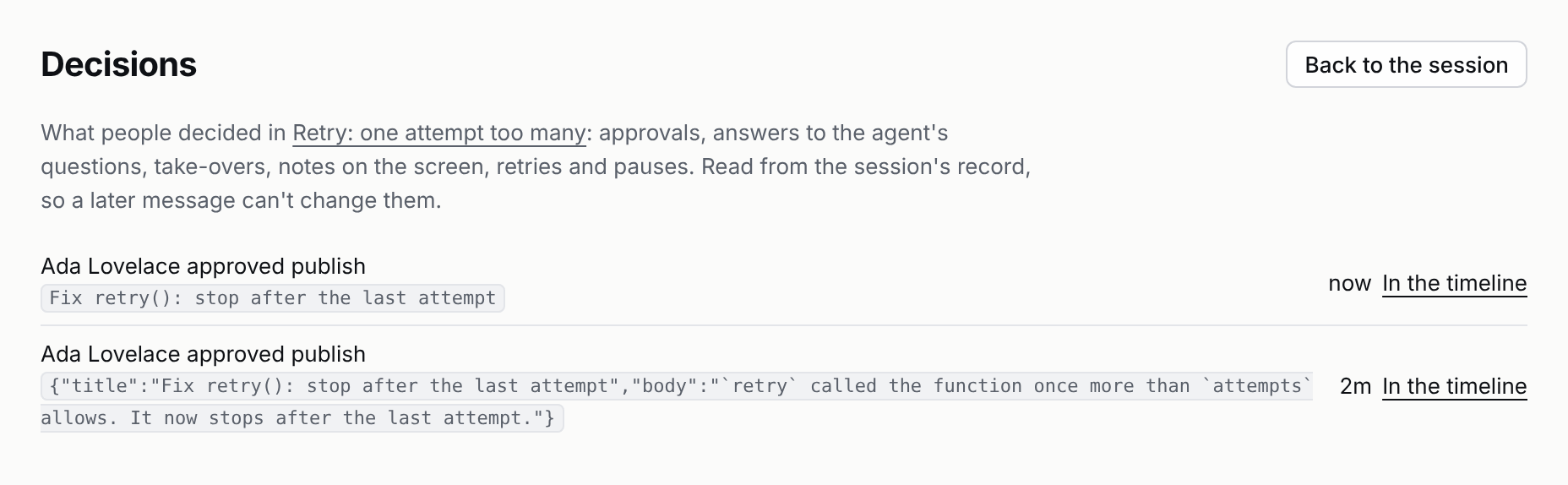
Every decision people made that shaped the work is kept apart from the conversation, so a later message can't quietly change it: approvals and denials with the exact command or diff, answers to the agent's questions, take-overs of the screen with their note, notes marked on the screen, retried stopped steps, pauses. Each says who and when. Open them from the title's menu: Decisions. Each row links to its place in the timeline.
When the agent opens a pull request, its description ends with a short Decisions section: who approved what. Whoever may view a session sees its decisions. Over HTTP it is GET /sessions/:id/decisions; in pistis attach, /decisions; over MCP, list_decisions.
When the agent waits
An agent can pause its work and continue later without keeping a sandbox running. It can wait for:
- A time. The
wait_untiltool, for example "check the deploy again in 10 minutes". It still fires after a restart. - An event. The
wait_fortool continues when a signed webhook arrives, such as a CI result. See Webhooks.
Idle sandboxes
An idle sandbox is paused after 2 minutes, stopped after 30 minutes and deleted after 7 days. Your files are saved on your server, and the next command brings the sandbox back without the agent noticing. An admin can change these times (Configuration).
Get the result
When the agent stops, a quiet line at the end of the session says how it went: the pull request, how many files changed (lines added and removed), how long it worked and what it cost. It updates after each turn.

When the agent publishes its work, the session shows a card with the pull request. Publishing again updates the same pull request. A session on several repositories opens one pull request in each repository it changed.
End a session
Ending a session stops its work and deletes its sandbox and saved files. The conversation is kept. An ended session accepts no new messages.